Repos
LOC repositories or repos are at the core of the platform. Think of a repo as a project or a store of knowledge. You don't have to abandon your folders to adopt LOC repos. In fact, you can keep all your folders and throw them in a repo, and LOC will start version controlling the contents.
Repos are about preserving corporate memory, controlling changes, and project management. You don't have to be starting a project from scratch to use repos. You can create a repo for an existing project, and drag and drop your files into the repo.
Viewing your repos
A workspace's repos are listed in the left navbar.
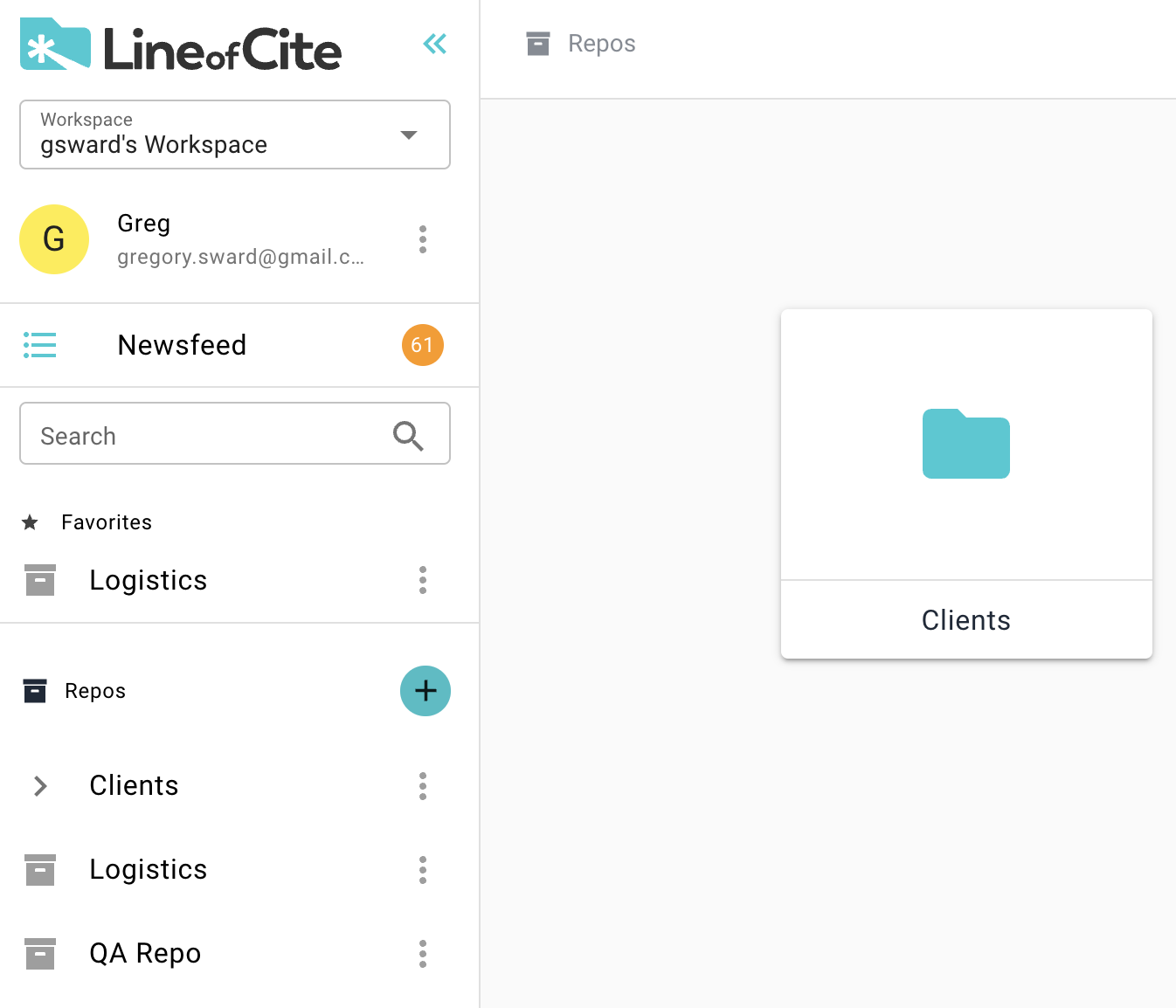
You can also view them in the main panel by clicking on the Repos icon in the left navbar
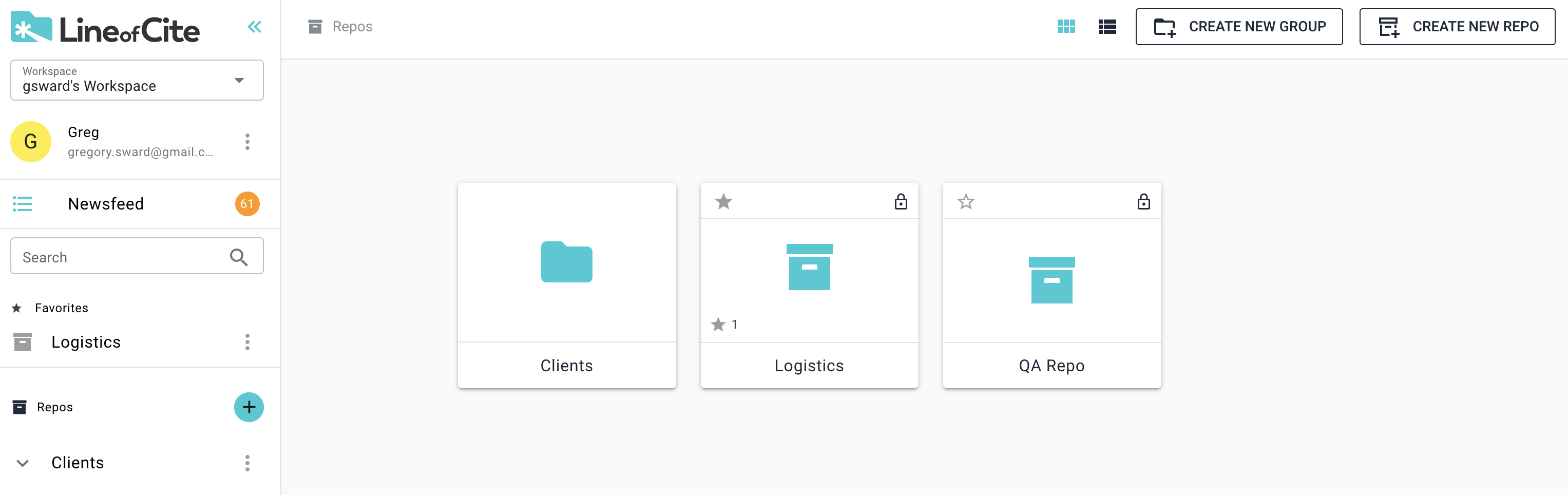
Info
Unless you're a manager or admin of a workspace, you will only see the repos to which you've been invited. More on workspace-level roles here
List vs Grid view
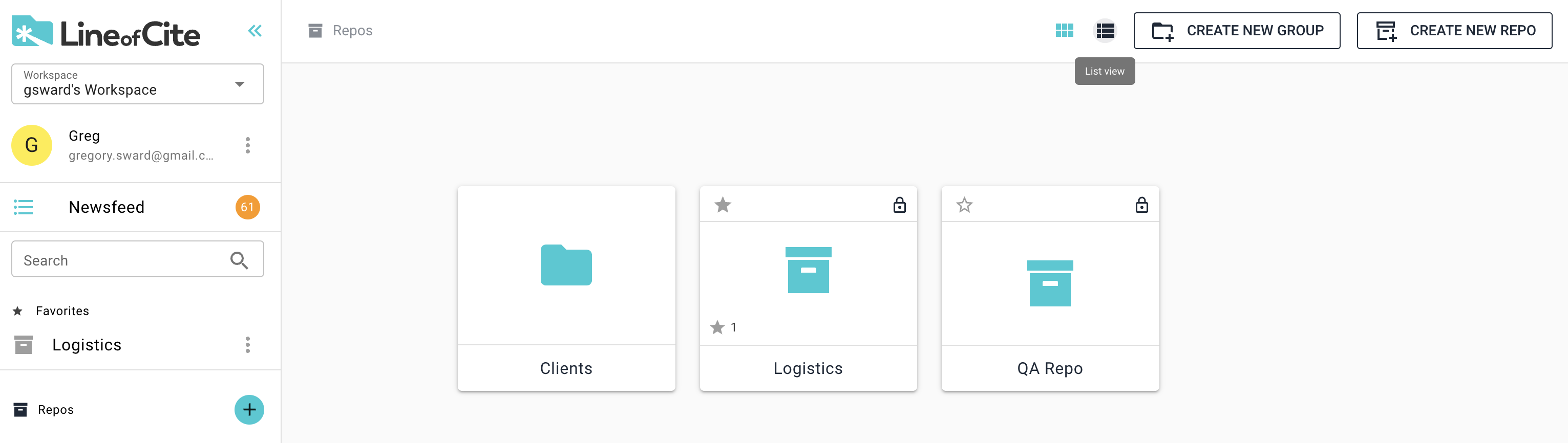
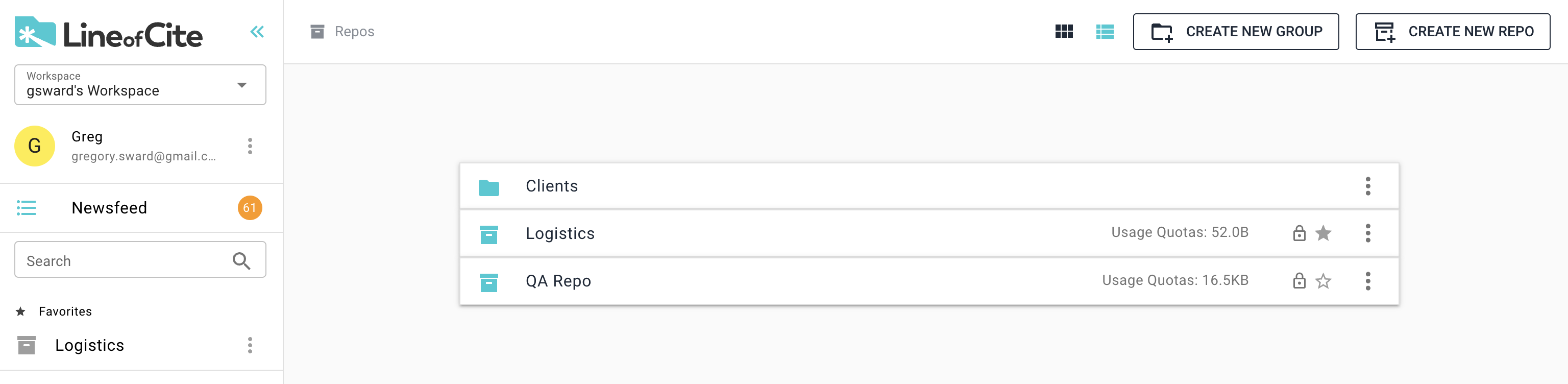
You can switch between a grid and list view of your repos:
Adding Favourites
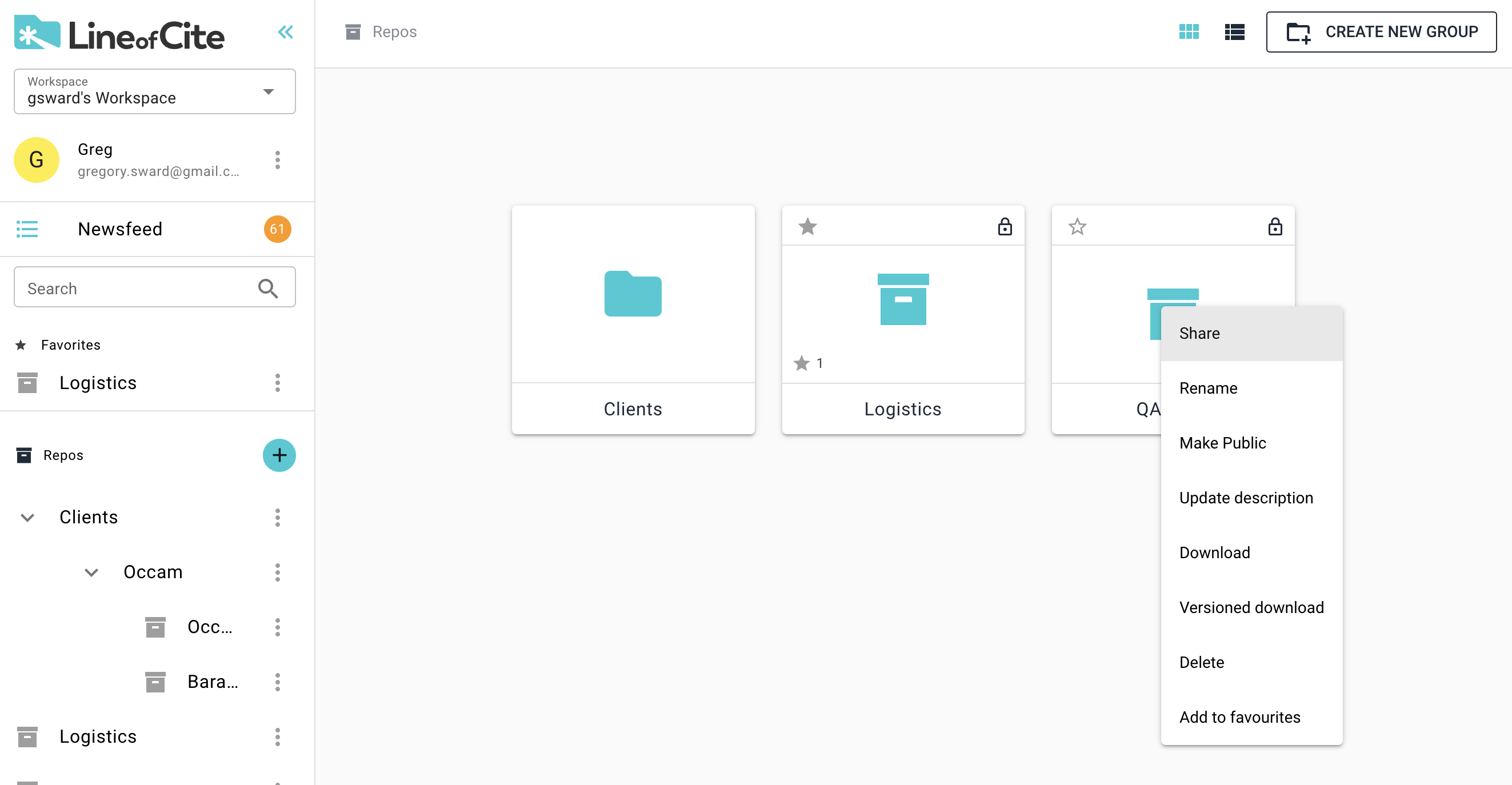
You can add repos to your favourites list by clicking on the star icon on the repo, or by right clicking on the repo and selected Add To Favourites.
Info
Your favourites list is cross-workspace. That is, you can add repos from several different workspaces to your favourites list. This allows you to navigate quickly between your most important projects without having to switch workspaces in the dropdown.
Creating a repo
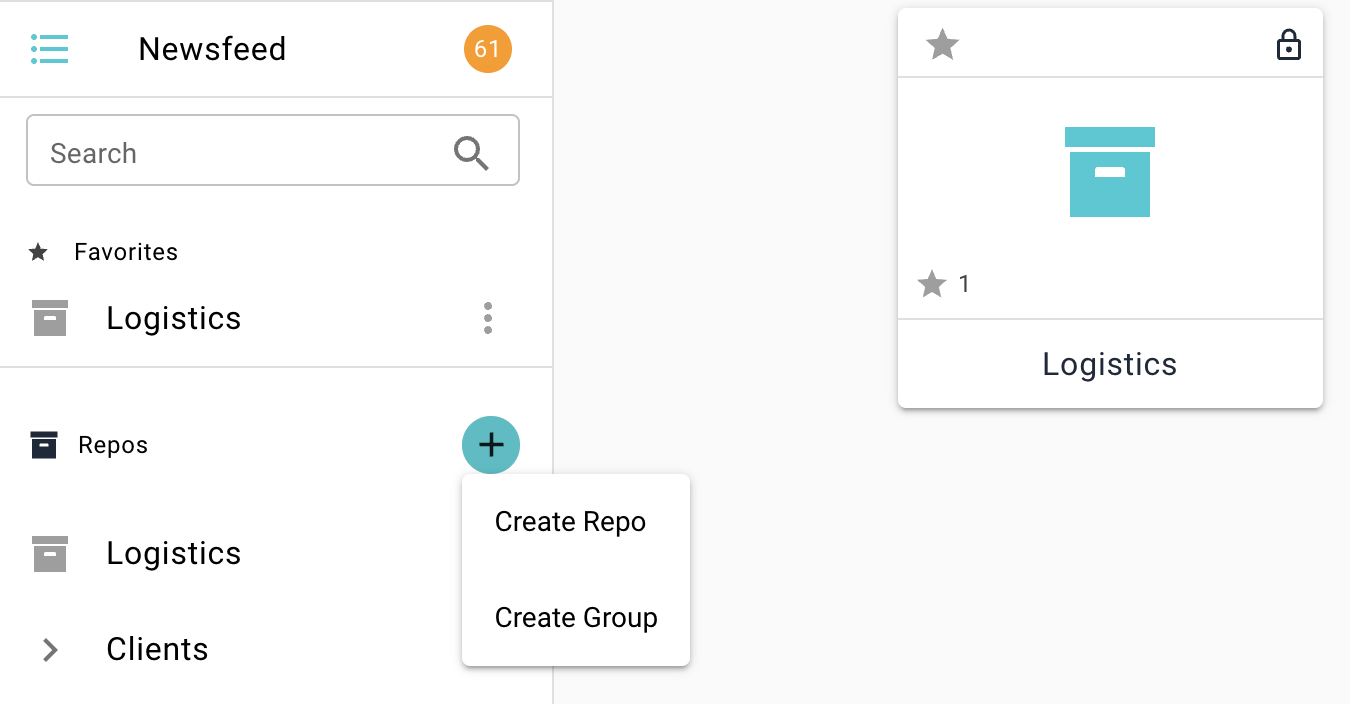
To create a repo, click on the blue 'plus' button in the left navbar and select Create Repo, or if you're on the repo page, you can select Create New Repo from the top right.
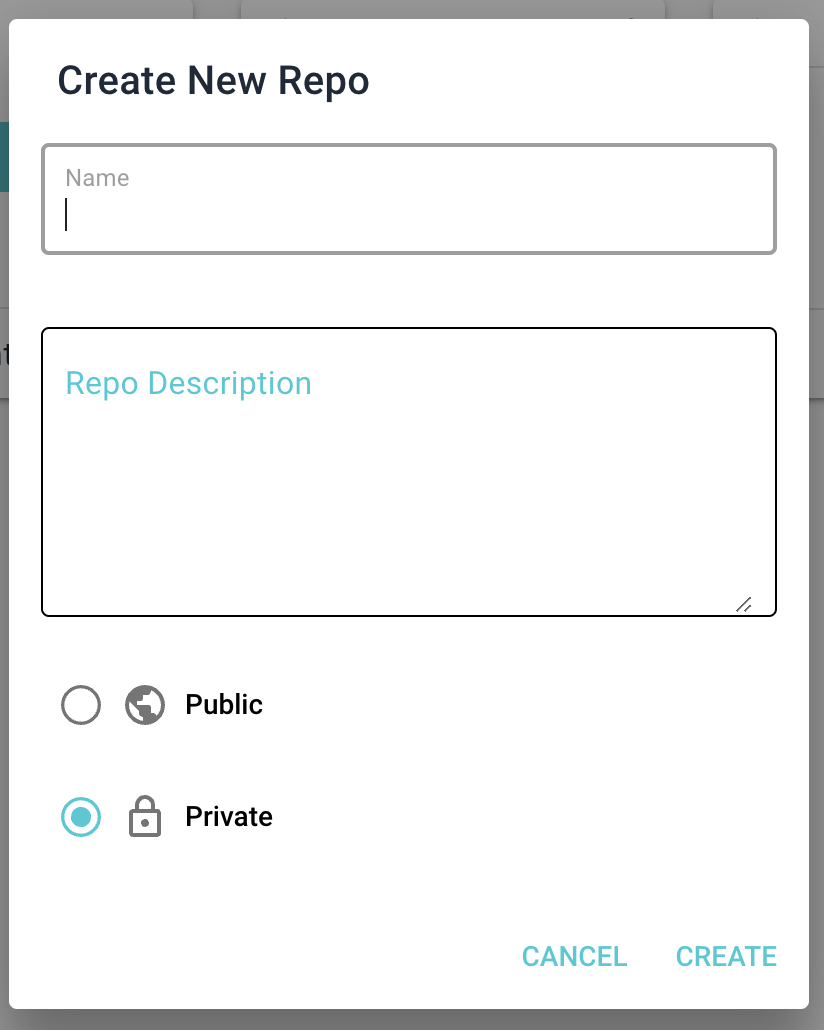
Give your repo a name, a description, and select whether or not you want a private or public repo.
Tip
Ever open a folder and wonder: What's all this? The first step to preserving the memory surrounding a project is knowing what it's about. Try to give a good description of the repo such that a new collaborator will know what it's about. Descriptions can be updated as you go.
Public and private repos
In LOC, every repo is either public or private.
-
Public Repos: Open to the public. They can also download or link to your content. While anyone can read a public repo's content, only invited users can make edits.
-
Private Repos Only available to invited members. See below for details on inviting collaborators.
Private repos have a lock icon in their top-right corner.
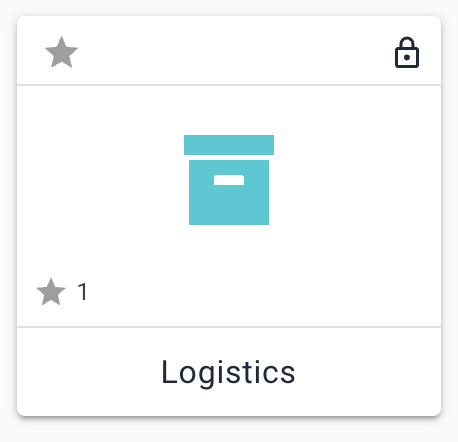
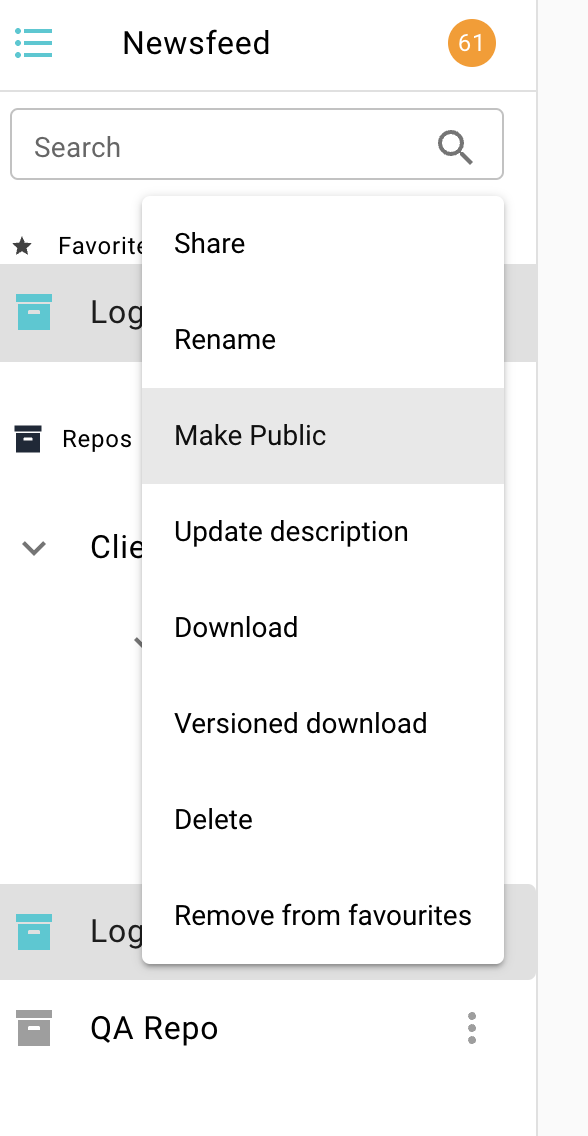
You can switch a repo from public to private, private to public by clicking on the vertical ellipsis from the left navbar, or by right-clicking on the repo from the repo page and selecting either 'Make Public' or 'Make Private'
Warning
If you switch a repo from public to private, any linked items from outside the workspace will have their links disconnected. The linked item from the outside workspace will not disappear, instead it won't receive any updates going forward. More on linked items here
Creating Groups
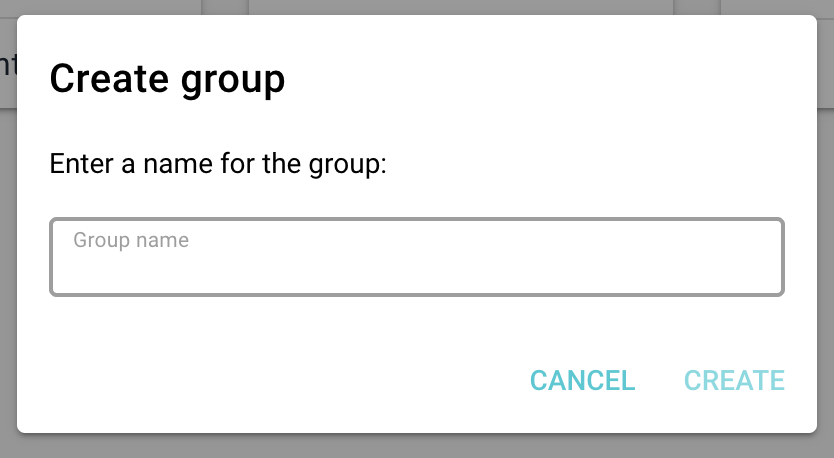
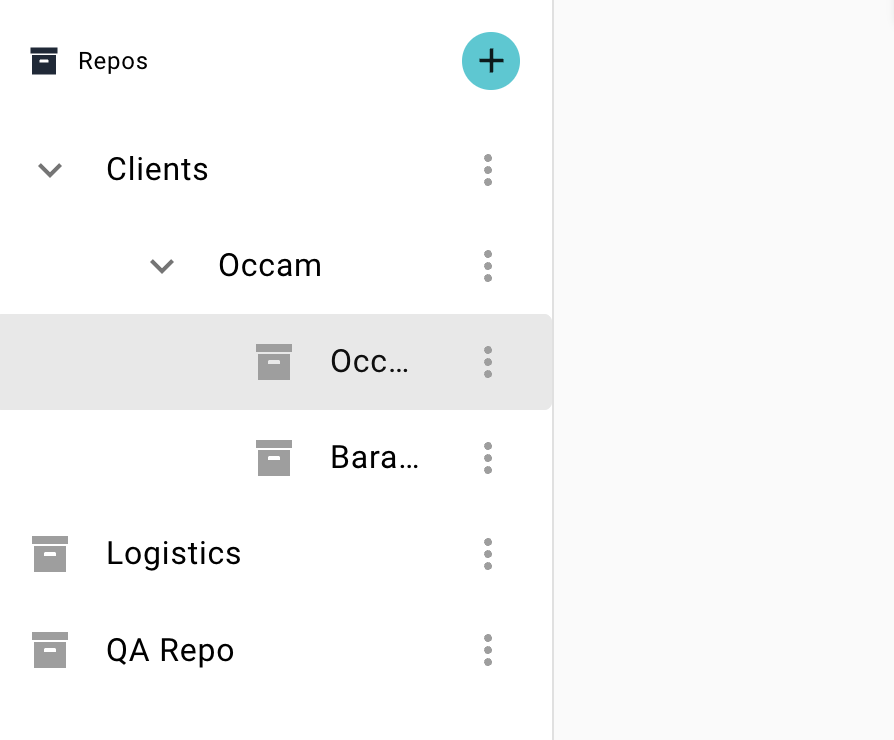
Keep your repos organized by creating groups and sub-groups. It will help keep your left navbar tidy. Re-organize your group structure by clicking and dragging the groups in the left navbar.
Note
Only Workspace Admins and Managers can create and modify groups.
Inviting and managing collaborators
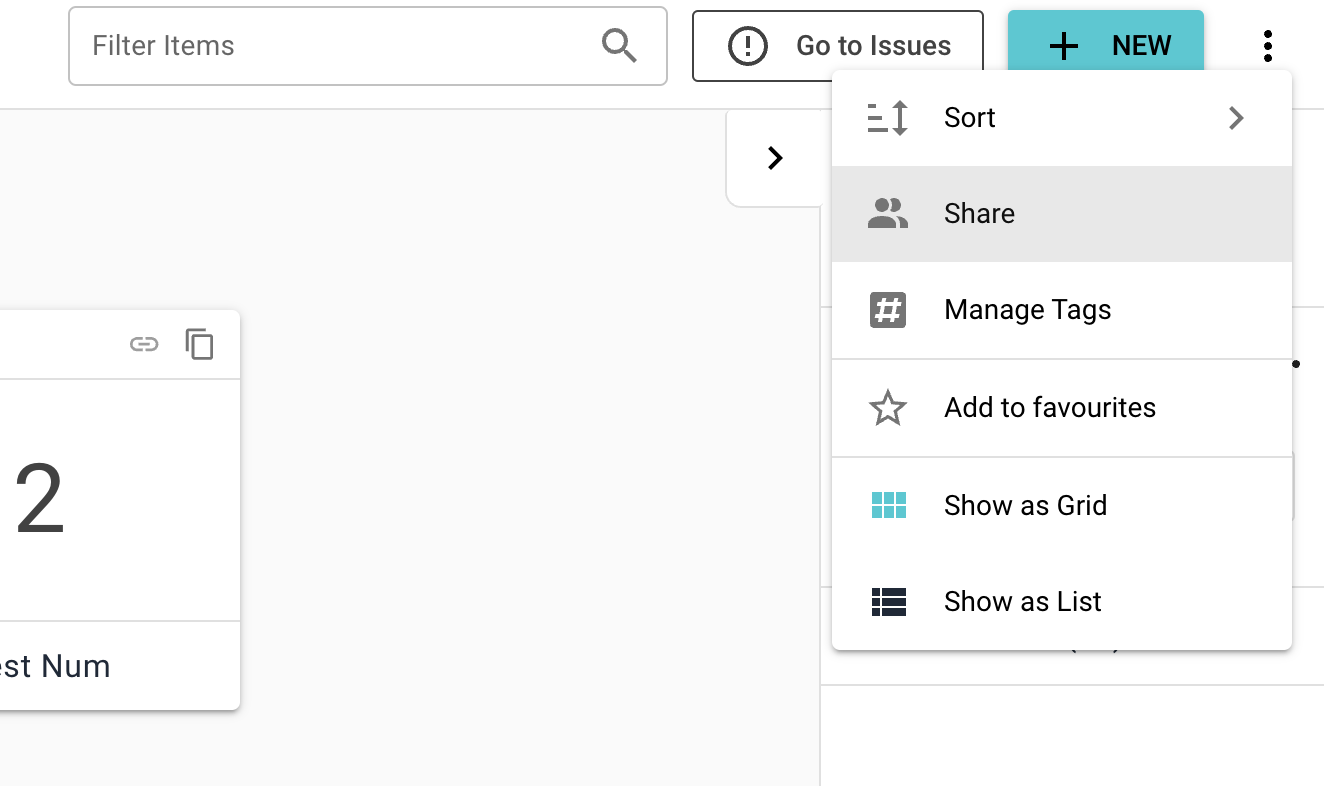
To view and manage a repo's users, click on the vertical ellipsis from either the left navbar or the top right corner and select 'Share'.
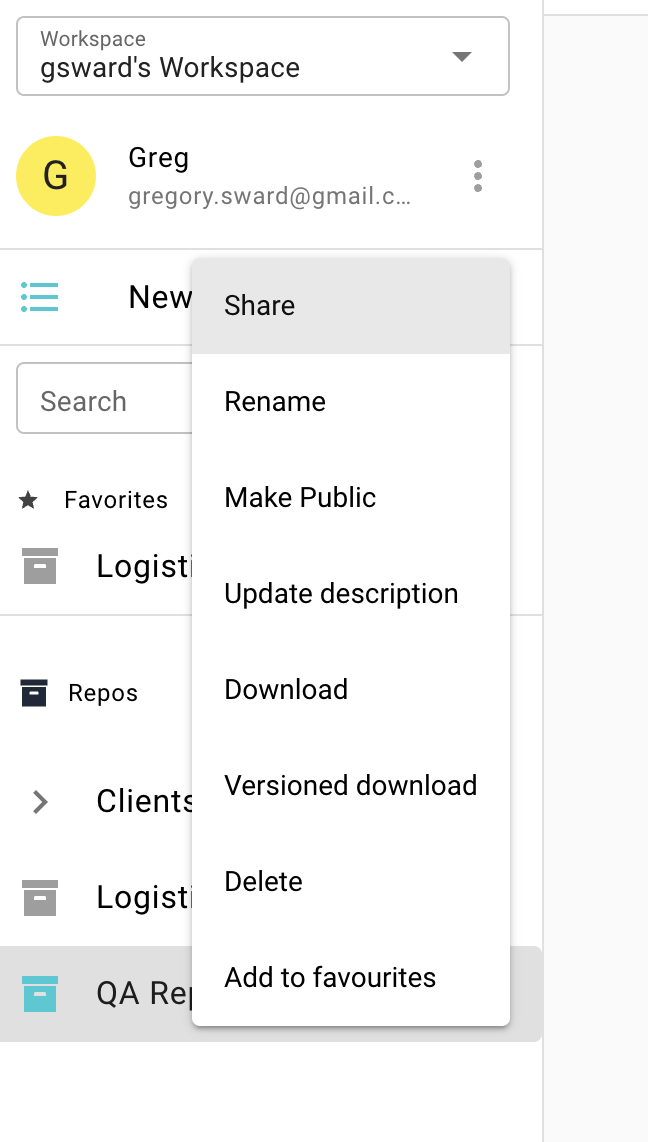
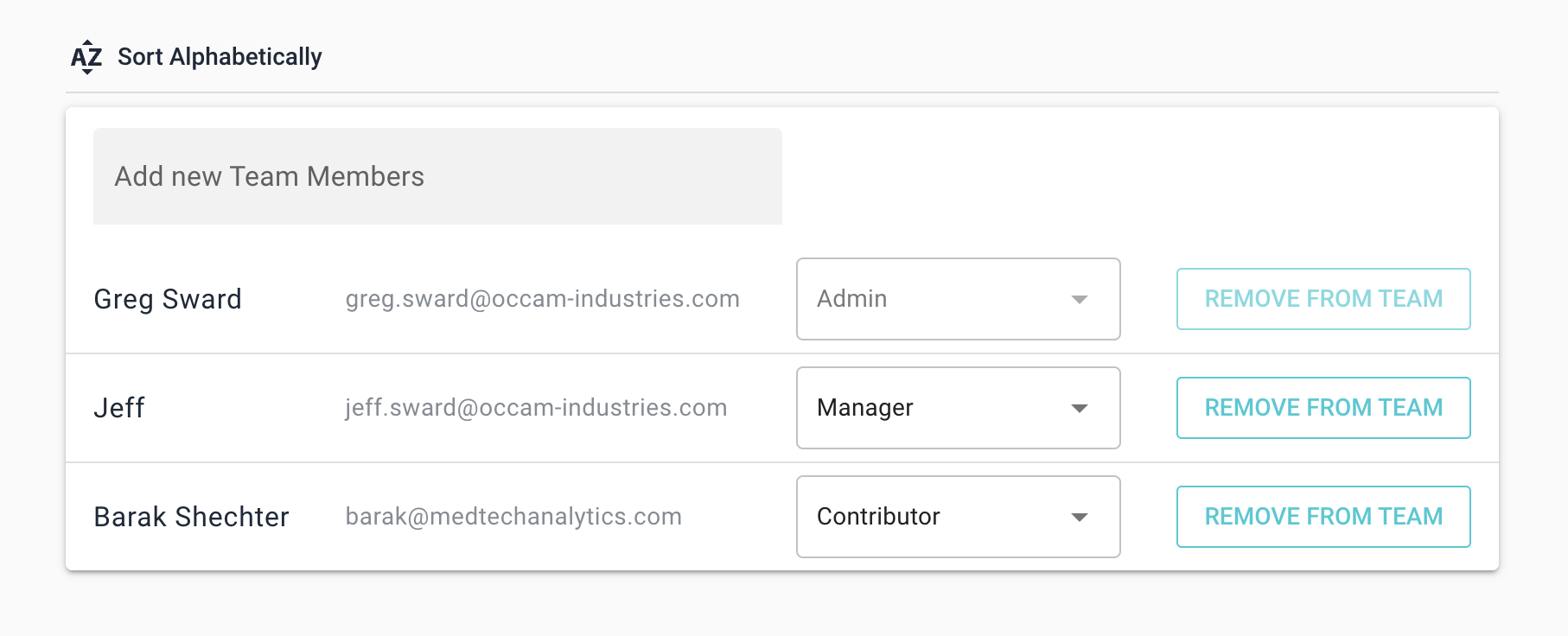
You can invite users by using the search field to either find users who are already on the LOC platform or to invite users via email.
Repo roles and permissions
Every user who has access to a repo has one of the following roles within that repo.
| Role | Permissions |
|---|---|
| Admin | User has same permissions as Manager and can invite and manage users. |
| Manager | User has same permissions as Contributer and can create new versions of the repo. |
| Contributer | User can create, edit, and delete items, but cannot save new versions of the repo. |
| View Only | User can view and download items, but cannot create or edit items. |
Note
Recall that LOC has two sets of permissions: workspace and Repo. workspace permissions can be found here
Downloading repos
LOC offers two download formats:
- Non-versioned Downloads
- Versioned Downloads
A non-versioned download will create a zip file with your repo items. A versioned download will also create a zip file with your repo items; however, the item names will be suffixed with the repo version, and the item version. For example a file called My_File.xlsx could be renamed My_File_RepoVersion-3_ItemVersion-2.xlsx. If you were to share this file via email, the receipient would know that it came from version 3 of the repo, and it was the second version of that item. This makes it easier to share your work outside of LOC.
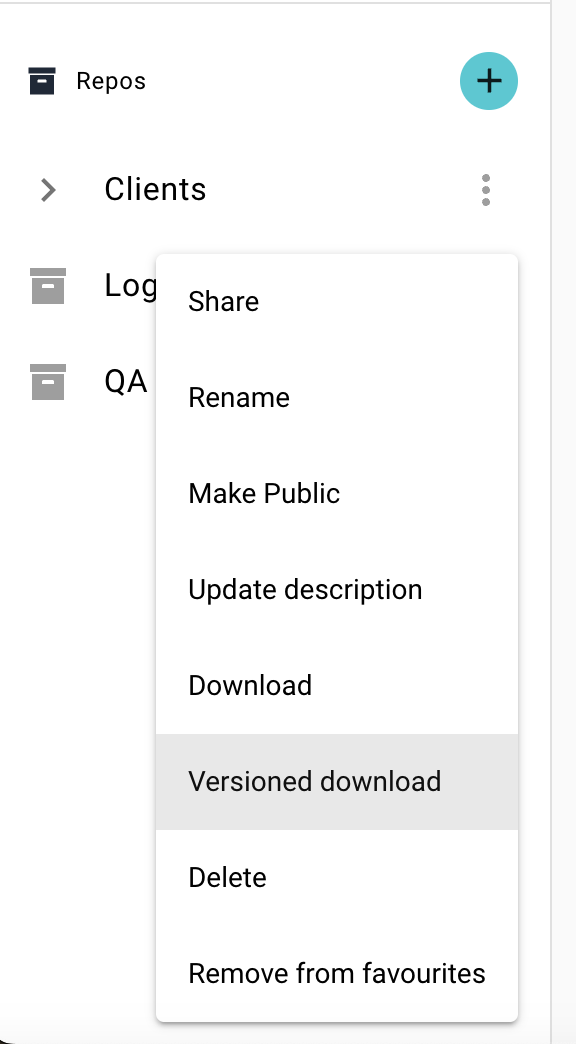
You can download every version of the repo as a nested zip file by clicking of the veritcal ellipsis on the left navbar and selecting either 'Download' or 'Versioned Download' or by right-clicking on the repo from the repo page.
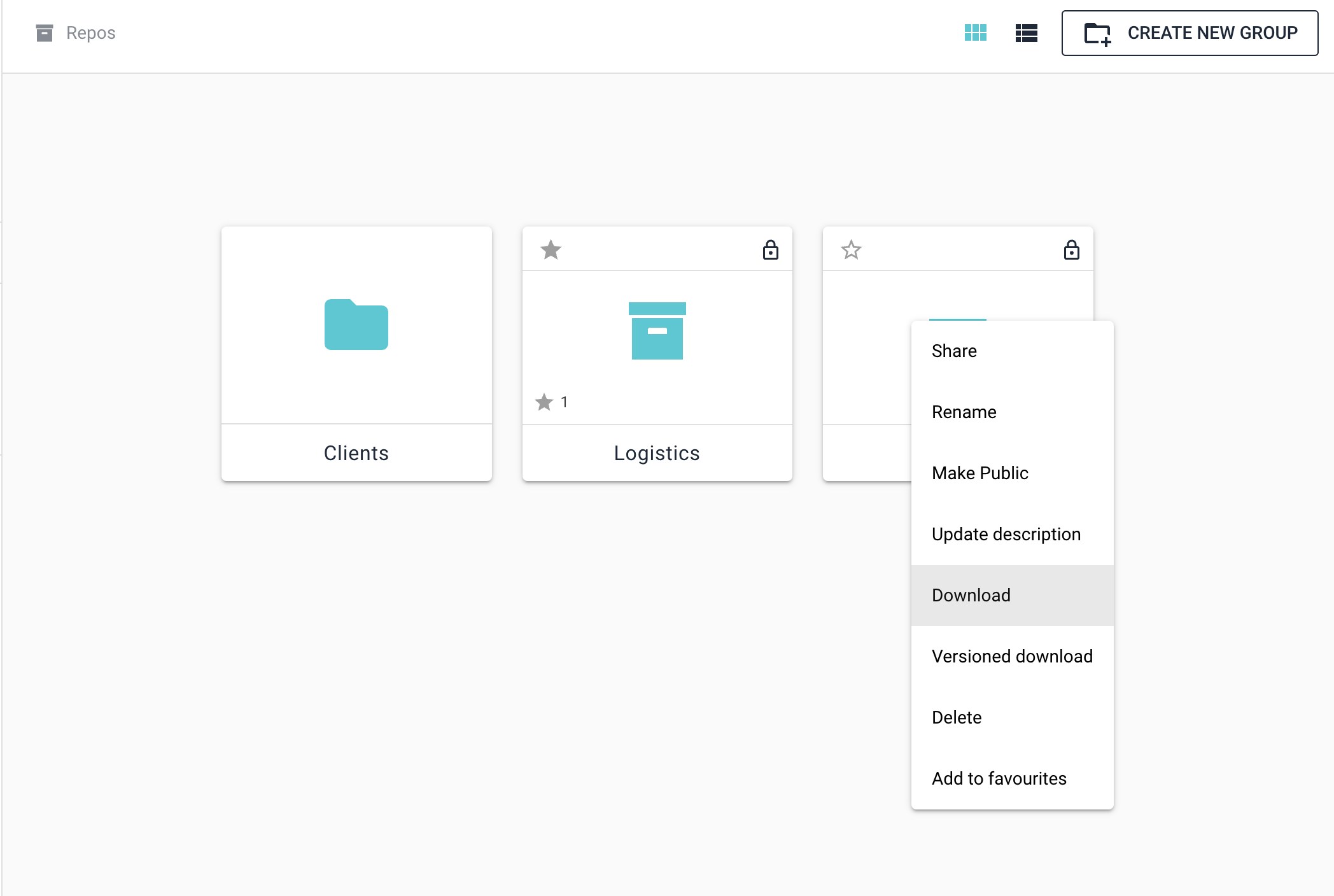
If you don't want to download the entire repo history, you can download particular version by selecting the version from the right navbar and clicking on the ellipsis and then selecting either 'Download' or 'Versioned Download'
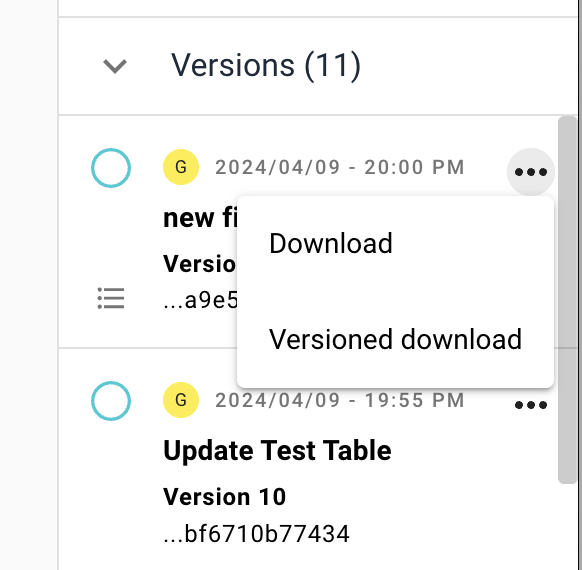
Note
You cannot download a repo without at least one committed version.
Note
When downloading a repo, the Current Draft version is not included.
Note
If you want to download the Current Draft version, you can only download as a regular download and not a versioned download as the items in the Current Draft do not belong to a version.